Help someone
Provide approved technical assistance while the host stays aware and in control.
Connect to another Windows device using a Device ID, access code, and explicit host approval. SkillBid Remote keeps the connection visible from request to disconnect.
Windows x64. Account creation happens inside SkillBid Remote.
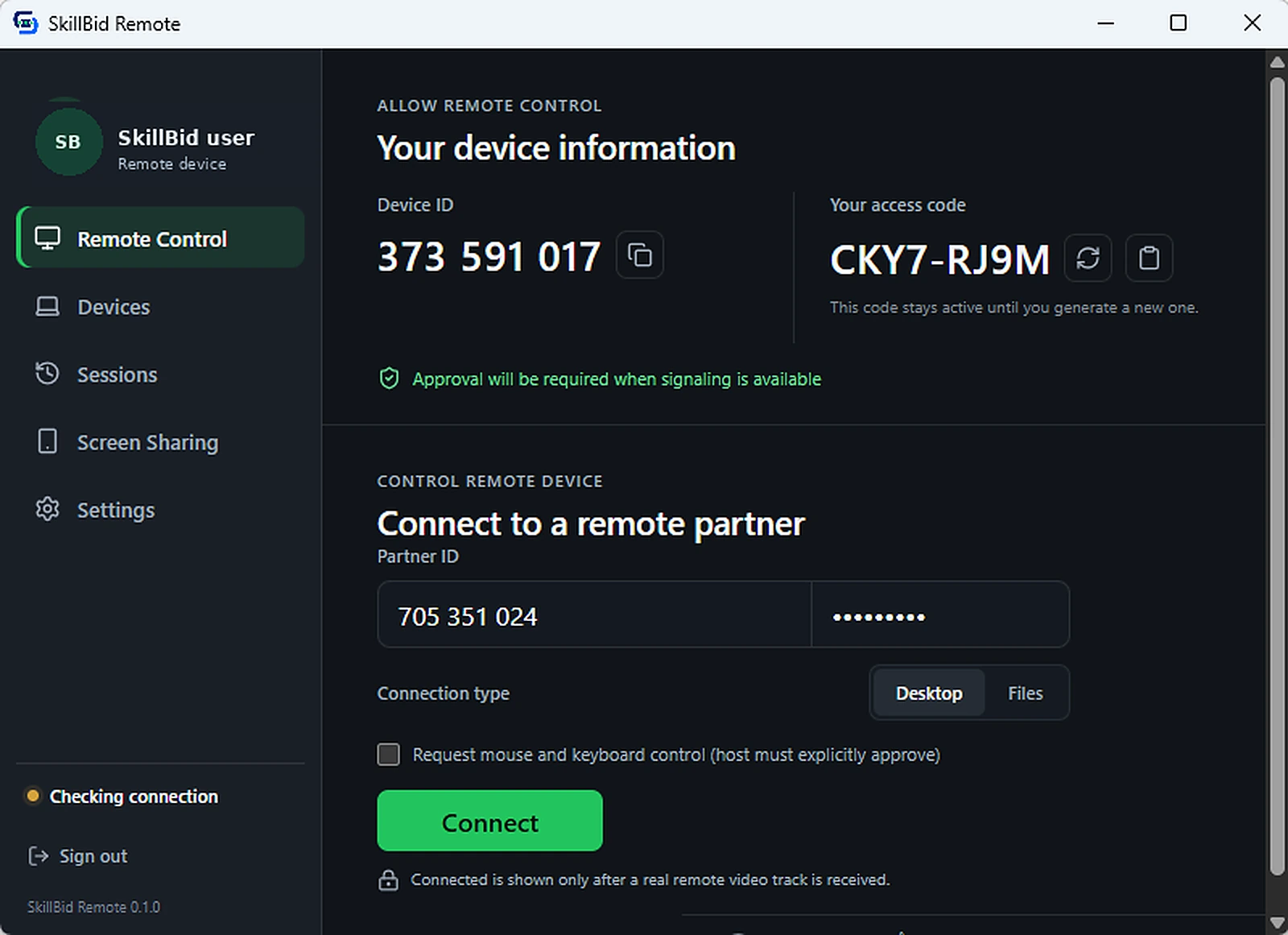
Every registered Windows device receives a shareable SkillBid Remote ID.
The receiving device shows a separate code for each connection request.
The host accepts or declines the request before control starts.
Connection state and disconnect controls stay visible throughout.
Create the account, identify the device, share the request, and let the host decide whether to continue.
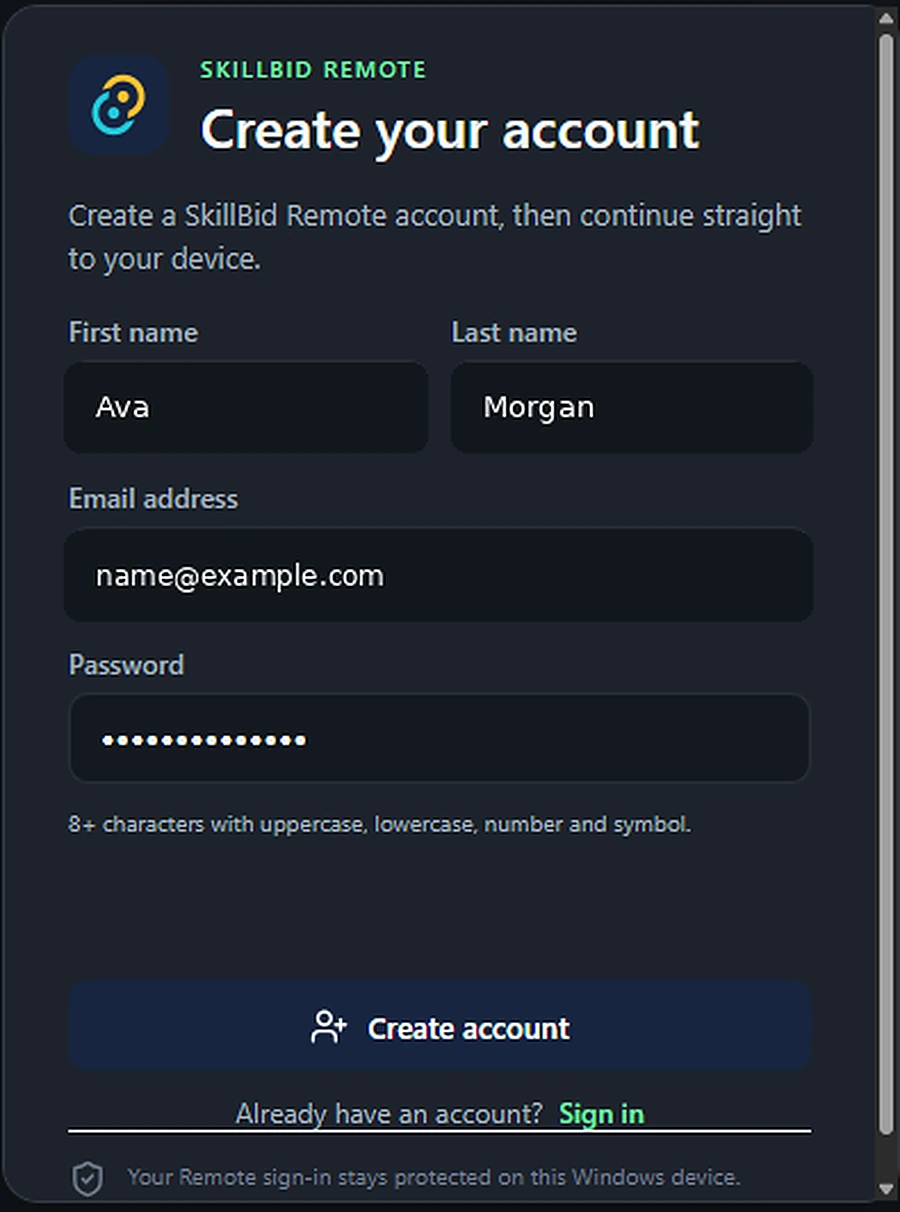

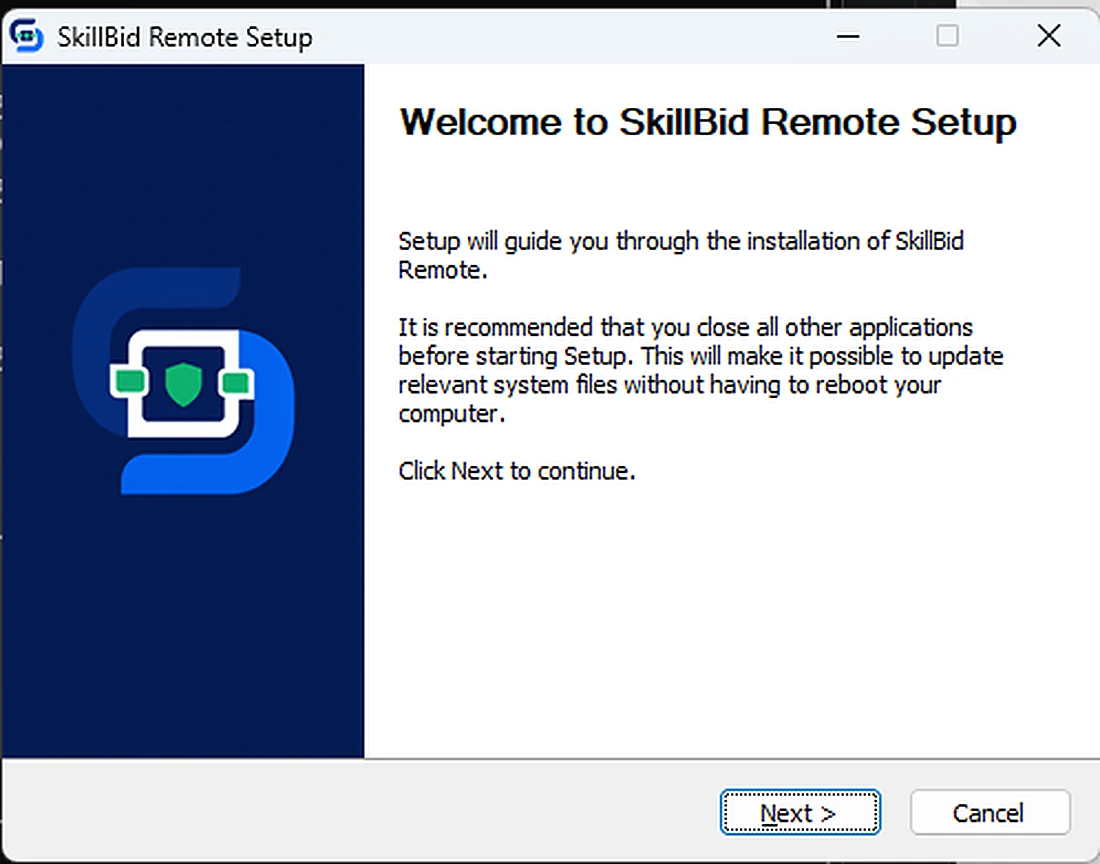
Install the Windows app and complete account setup inside SkillBid Remote.
Use the registered Device ID and current access code for the request.
The receiving host reviews the request and decides whether to continue.
Disconnect controls remain available while the session is active.

The receiving device remains part of the connection, from approving control to ending the session.
The host sees who is asking to connect and why.
No control begins until the host accepts the request.
Mouse and keyboard access remain a separate, explicit choice.
CONTROL STAYS WITH THE HOST
SkillBid Remote uses a Device ID, an access code and host approval before a remote control session can begin.
ACCESS CODE
YV6H-X9KF
Active and readyUse SkillBid Remote when the best help is a person seeing the same Windows screen you see.
Provide approved technical assistance while the host stays aware and in control.
Work through a Windows problem using an intentional, visible connection flow.
Connect only when the receiving device says yes and the session is ready.
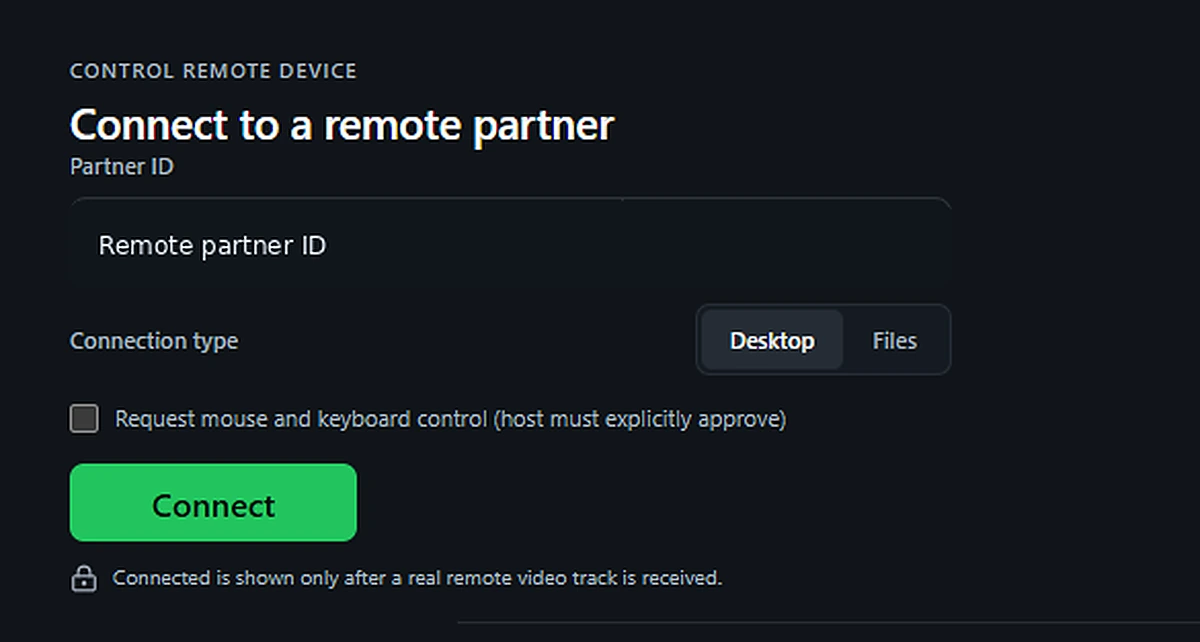
Remote control is never treated as automatic. The host remains part of every important decision.
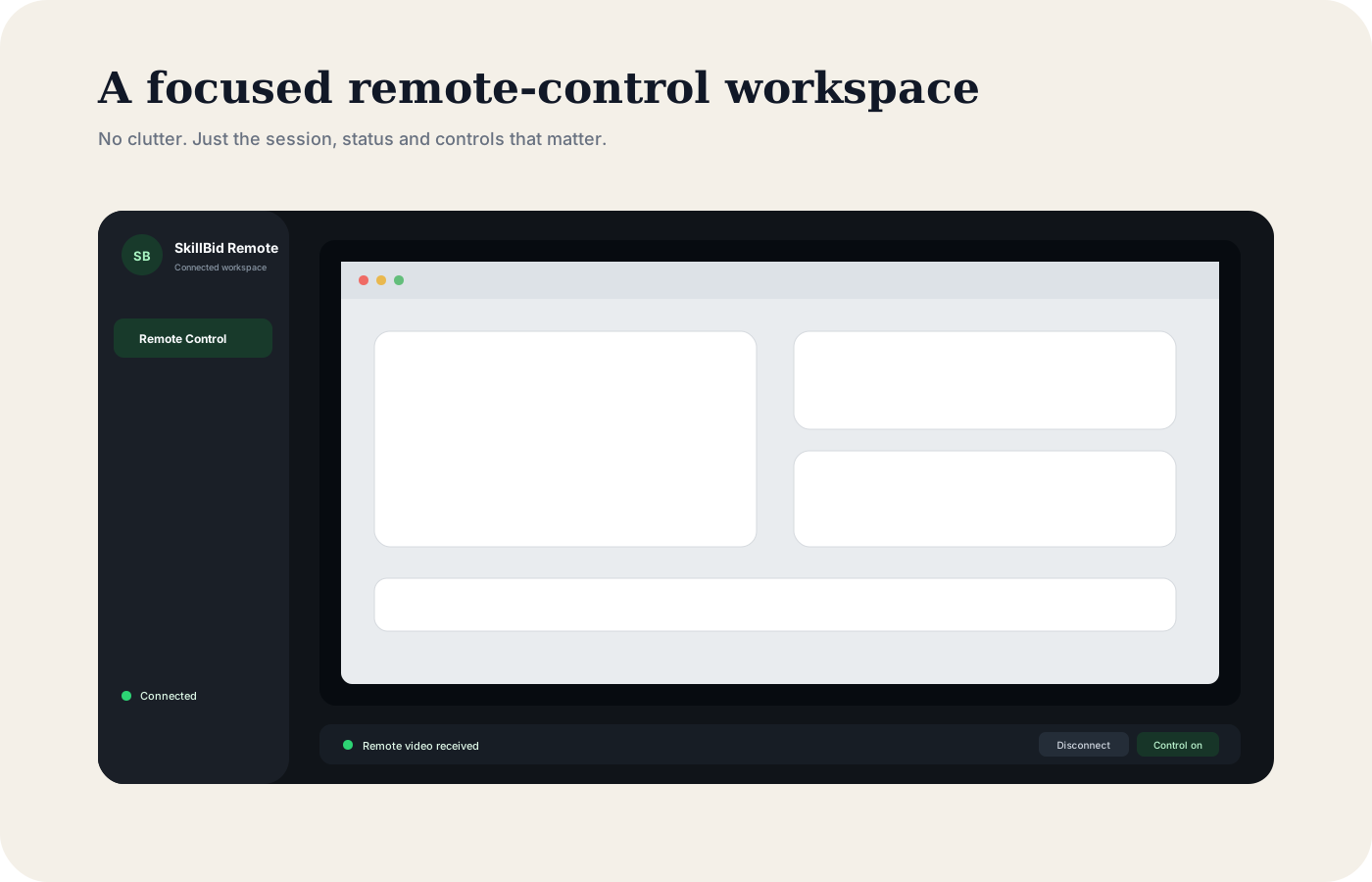
Install the Windows app, create your account inside SkillBid Remote, and receive the Device ID and access code needed for an approved connection.
Download for WindowsWindows x64. SkillBid Remote 0.1.0.